
Security
Fake IT support in Microsoft Teams: settings that stop it
Here’s a message your staff could get tomorrow. A Teams chat from someone called “IT Help Desk,” saying there’s a problem with their account and asking them to jump on a quick call. A few minutes later the “technician” asks them to open a remote support tool and read out a code.
None of that requires hacking anything. It just uses Teams the way it ships.
The short answer
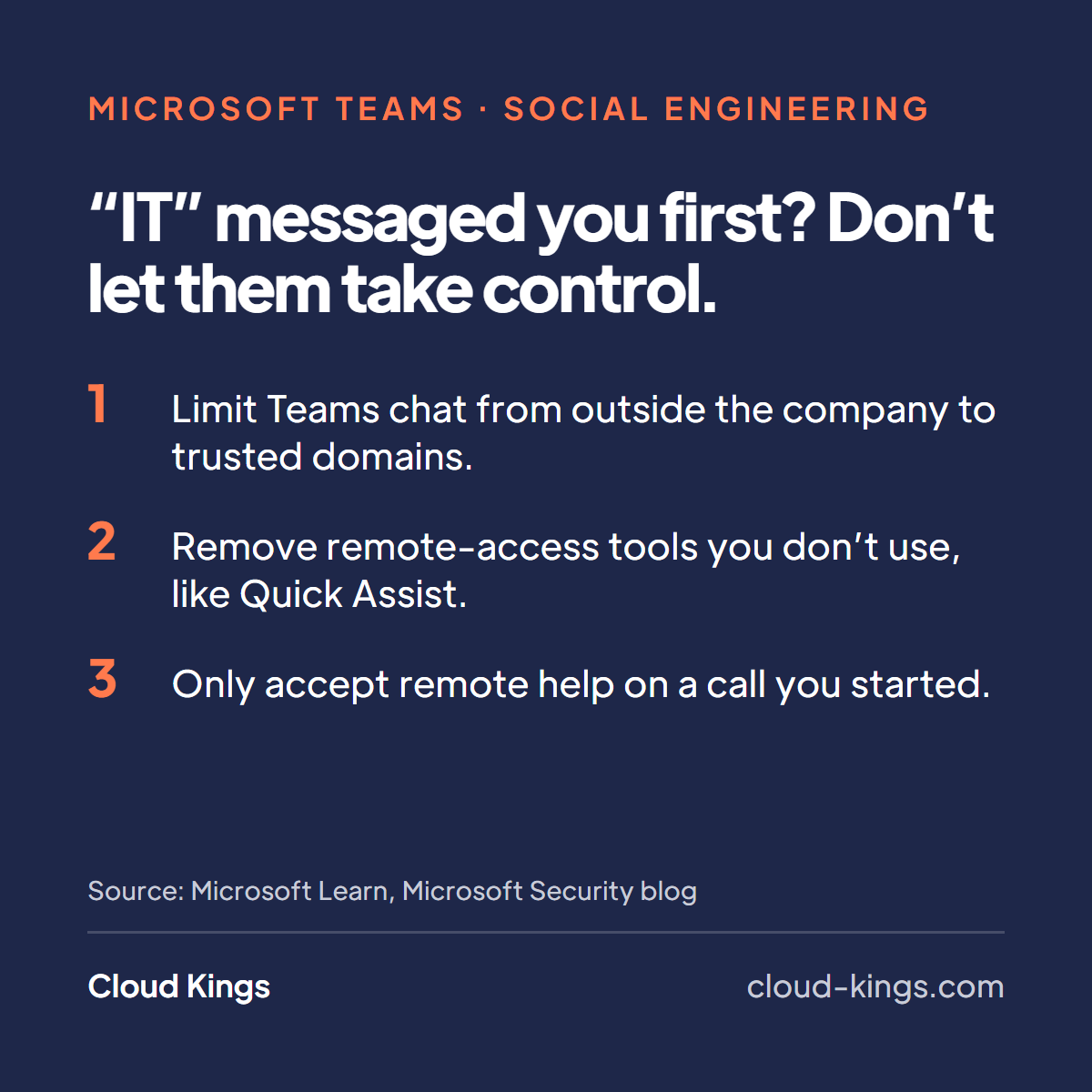
Out of the box, Teams lets people outside your company find, chat with and call your staff. Lock that down to the partners you actually work with. Decide which remote help tool your business uses and block the rest. Then tell staff, in one sentence, that real IT will never cold-message them and ask for remote access.
The rest of this post walks through each of those three changes.
How the scam works
The pattern is simple. An outside account, often named something like “Help Desk” or “IT Support,” messages or calls a user in Teams. Sometimes it follows a flood of junk email, so the “fix” sounds believable. The caller asks the user to start a remote session with a built-in tool like Quick Assist. Once they’re connected, they can install software, steal credentials, or set up a way back in.
This isn’t hypothetical. Microsoft Threat Intelligence documented a group it tracks as Storm-1811 misusing Quick Assist in social engineering attacks that led to ransomware. In a June 2024 update to that post, Microsoft said the group was using Teams “to send messages and initiate calls in an attempt to impersonate IT or help desk personnel.” (Last checked November 2, 2026.)
The weak point isn’t the software. It’s that a stranger can reach your staff inside a tool they trust.
External access in Teams
Teams calls this feature external access. Microsoft’s external access guide says the default setting, “Allow all external domains,” lets your users “find, call, chat, and set up meetings with people external to your organization.” (Last checked November 2, 2026.)
That’s the setting to change. You have a few options, all covered on the same page:
- Allow only specific external domains. Per Microsoft, “if you specify allowed domains, all other domains are blocked.” This is the tightest option and the one we’d start with for most small businesses.
- Block specific domains. Better than nothing, but scammers just use a new domain.
- Turn off chats with unmanaged accounts. These are people “not managed by an organization, such as Microsoft Teams (free).” You can disable them entirely, or keep them on but stop those accounts from starting chats and meetings with your users.
Two details matter. First, Microsoft notes each external access option has an organization setting and user policies, and “both the organization setting and a user policy must allow it.” So you can open external chat for a sales team and keep it closed for everyone else. Second, Microsoft’s Teams security guide says federation with other organizations “is on by default,” and that a coordinated attack from a partner “can be difficult to overcome unless you disable federation from the partner.” (Last checked November 2, 2026.)
Before you flip the switch, build your allow list. Ask each department which outside companies they chat with in Teams. It’s usually a short list.
Remote help tools
Even with external access locked down, a phone call or a personal email can get the same request through. So close the second door too.
Microsoft’s Quick Assist documentation is direct about it: “To disable Quick Assist, block traffic to the https://remoteassistance.support.services.microsoft.com endpoint.” Once that’s blocked, Microsoft says, “Quick Assist can’t be used.” (Last checked November 2, 2026.)
The same page gives the rule your staff need: “Never allow a connection to your device by someone claiming to be ‘IT Support’ unless you initiated the interaction with them.”
If you do support people inside one company, Microsoft suggests a different tool. Its guidance says organizations using Quick Assist “within a single Microsoft Entra tenant” should “consider switching to Intune Remote Help for enhanced security and enterprise-grade controls.”
The goal is simple. Your business uses one remote support tool, everyone knows which one, and anything else is a red flag.
What to tell your staff
Settings help. People still decide whether to click. Keep the message short enough to remember:
“IT will never message or call you out of the blue and ask for remote access. If it happens, hang up and report it.”
Then back it up with two facts:
- How real IT contacts them. Name the channel. A ticket number, a known phone number, or a named person. If a request doesn’t come that way, it’s not real.
- How to report it. One place, one step. Forward the chat or call details to a set address or ticket queue. Make it clear nobody gets in trouble for reporting, even if they already clicked.
Say it at the next team meeting and put it in writing. Repeat it when new people start.
Questions people ask
The common ones are answered below.
Want a second pair of eyes on your settings?
If you’d like someone to walk through your Teams external access and remote help setup with you, that’s a short conversation. Schedule a call. It’s a free 15-minute scoping call, and if your settings are already in good shape, we’ll tell you.
Frequently asked
- Will blocking external access break our chats with partners?
- Not if you add them first. When you switch Teams to allow only specific external domains, the domains on your list keep working and everyone else is blocked. Pull a list of the outside companies your staff actually talk to, add those, then make the change.
- Can we still meet with customers who are not on the list?
- Often, yes, but test it. Microsoft's external access guide covers chats, calls and meetings with people in other organizations, and it notes other Teams settings (including guest access and anonymous access) also affect meetings with people outside your org. Add your regular customers to the allow list and try a meeting with one of them before you roll the change out. See also Microsoft's plan for meetings with external participants.
- What about guests in our teams?
- Guests are a different feature. Microsoft's comparison of guest access and external access says guest access invites someone into a team (with a guest account in your directory), while external access lets users find, call and chat with people outside the org without giving them access to your teams, sites or other Microsoft 365 resources. Review both, but the fake help desk message usually comes through external access.
- Do we need Quick Assist at all?
- Many small businesses do not. If your IT provider uses its own remote tool, Quick Assist is just one more door. Microsoft documents how to disable it by blocking the endpoint it uses to start a session. If you support people inside one tenant, Microsoft suggests looking at Intune Remote Help instead.
- What if someone already let a fake IT person in?
- Treat it as an incident, not a lecture. Disconnect the device from the network, have the user change their password from a different device, and call your real IT support right away. Then review recent sign-ins for that account and look for software installed during the session. This is general response advice, not a Microsoft procedure.
Continue reading
-
Moving to GCC High: what changes for your staff
New sign-ins, new web addresses, phones and laptops set up again. What your staff will notice after a Microsoft 365 GCC High move, and how to prepare them.
-
Azure Government for defense contractors
Why defense contractors pair Azure Government with GCC High for file servers, AVD, databases and apps holding CUI or ITAR data, and how it differs from Azure.